
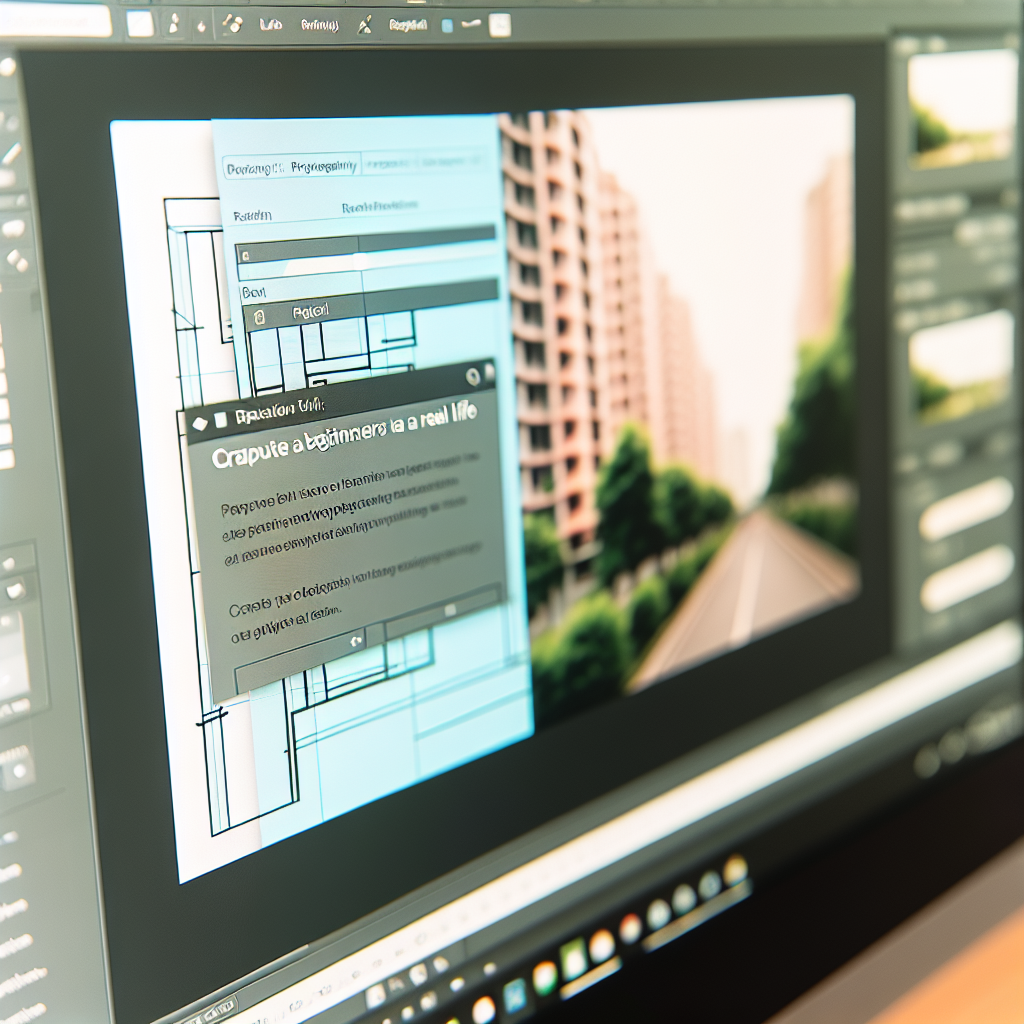
Revit – Sheets: Complete Tutorial for Beginners
Creating and managing sheets in Revit is fundamental for documenting your building design projects efficiently. This tutorial will guide beginners through the essential steps of organizing, annotating, and exporting sheets to ensure your construction documents are professional and well-structured. Whether you’re just starting or looking to improve your workflow, this guide has you covered.
Understanding the Basics of Revit Sheets and Proper Organization
In Revit, sheets serve as the final presentation layer for your project. They act as containers for views like floor plans, elevations, sections, and details. To effectively manage your documentation, it’s crucial to understand how sheets function within the Revit environment. Start by creating a new sheet from the View tab, selecting Sheet and choosing an appropriate title block.
Designating placement order and naming conventions early on can greatly enhance your workflow. Use descriptive sheet names and numbering systems that follow industry standards, such as “A101 – Ground Floor Plan” or “E101 – East Elevation.” Revit allows you to duplicate sheets and views, streamlining updates and revisions. Additionally, leverage the Sheet Browser to keep track of your sheets and ensure consistency throughout your project.
Adding Views, Annotations, and Exporting Your Sheets
Once your sheets are created, the next step is to populate them with views. Drag and drop views directly from the Project Browser onto the sheet. You can adjust the placement by selecting and moving views to achieve a professional layout. Use the Viewport tools to resize and arrange views neatly, ensuring clarity and proper scale.
Enhance your sheets with annotations, dimensions, and tags to communicate design intent effectively. Revit’s annotation tools allow for detailed notes and labels that automatically update with your model changes. When your sheets are complete, you can export them into various formats such as PDF or DWF for sharing and printing. To do this, navigate to the Print dialog, select your sheets, and configure the print settings for optimal output quality.
Mastering sheets in Revit involves creating organized, annotated, and professional layouts. By understanding the structure and workflow, you can streamline your documentation process, produce accurate construction sets, and enhance collaboration with project stakeholders. Practice, combined with efficient sheet management, will elevate your Revit proficiency and project quality.
Conclusion
In summary, creating and managing sheets in Revit is a vital skill for producing organized and professional building documentation. Starting with proper sheet organization, placing views effectively, and enhancing them with annotations ensures clarity and efficiency. With practice, mastering sheets in Revit will significantly improve your project workflows and deliverables, making your designs ready for presentation and construction.