
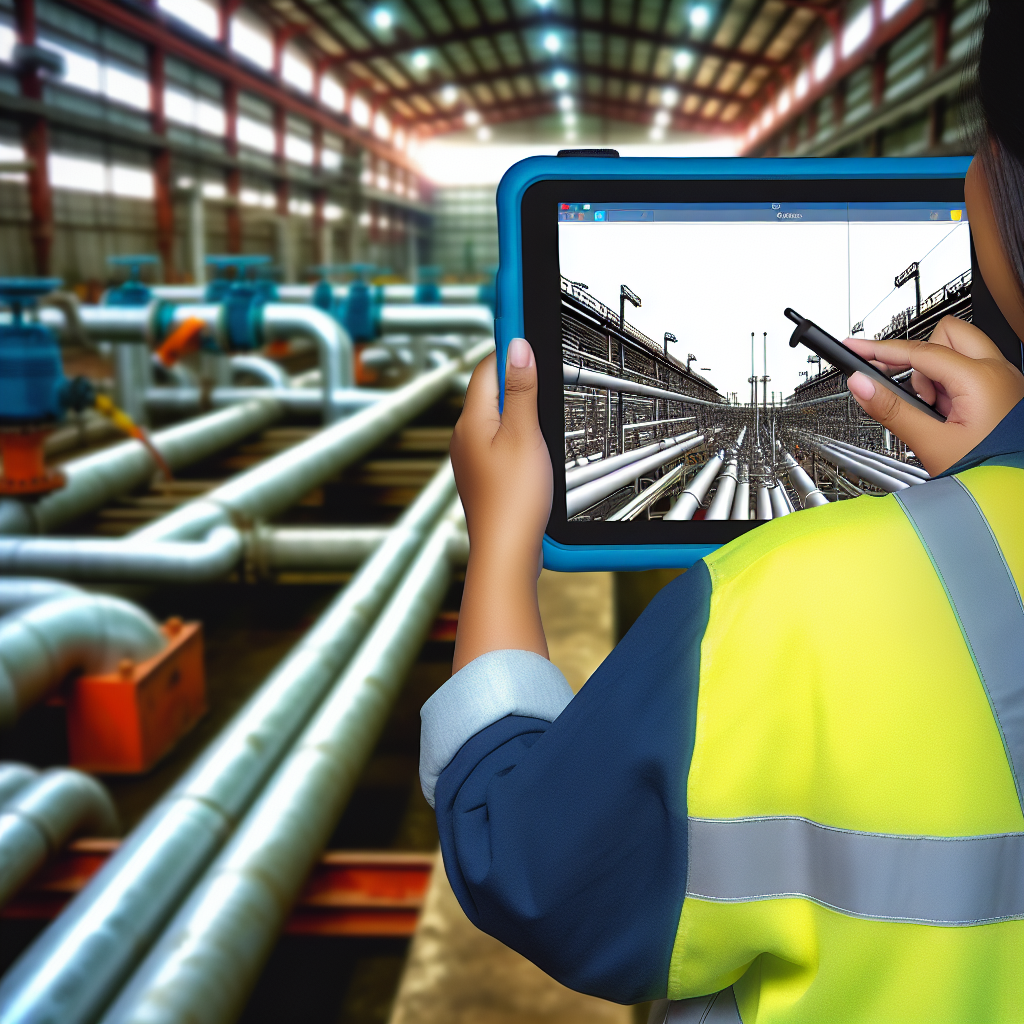
Searching for pipes and equipment efficiently within Autodesk Navisworks is crucial for accurate clash detection and project coordination. This guide will explore effective methods to locate specific pipes and equipment using Navisworks’ powerful search and selection tools, helping project teams streamline their workflows and reduce errors in complex models.
Utilizing the Selection Tree and Search Tools in Navisworks
One of the most effective ways to find pipes and equipment in Navisworks is through its built-in Selection Tree. This hierarchical view displays all elements within the model organized by their categories, such as Pipes, Mechanical Equipment, or custom tags. By default, the Selection Tree allows users to quickly locate specific items by expanding relevant categories and folders.
However, in large models, manually browsing the Selection Tree can be time-consuming. To optimize the process, Navisworks offers the Search Set and Find Items functionalities. These tools enable users to create criteria-based searches, such as filtering all pipes of a certain diameter or all equipment of a specific type, thereby narrowing down the search results rapidly.
- Using the Find Items Tool: Accessible via the “Find Items” option, this feature allows users to search by properties like Name, Type, or Custom Properties. Enter relevant keywords to highlight all matching objects instantly.
- Creating Search Sets: Save specific search criteria as reusable sets, making it easy to quickly locate repeatedly used components throughout different projects.
Applying these search tools requires understanding the model’s property data. Ensuring that your model’s properties are standardized and properly maintained enhances the efficiency of search operations.
Advanced Search Techniques for Precise Identification
Beyond basic searches, Navisworks users can leverage advanced techniques for more precise identification of pipes and equipment. These techniques include using Selection Sets, Filtering by Properties, and Markups.
For example, if you need to locate all pipes with a specific diameter, you can filter objects by the “Diameter” property or create a custom property category. Using filters helps in isolating elements based on parameters like size, material, or installation date, which is particularly useful in large, complex models.
Another effective method is applying Color Coding or Annotations through markups to visually differentiate specific pipes or equipment types. This visual aid simplifies ongoing coordination and review processes, especially during clash detection or construction planning.
Additionally, **saving your search queries or creating custom scripts** via Navisworks’ API can automate repetitive tasks for large projects, increasing productivity and accuracy.
Conclusion
Mastering how to search for pipes and equipment in Navisworks significantly enhances project efficiency by enabling quick access to specific components within complex models. Utilizing the Selection Tree, search tools, advanced filtering, and visual markups allows users to streamline workflows, improve accuracy, and facilitate better coordination across project teams. Implementing these techniques ensures optimal use of Navisworks’ powerful capabilities for model management and clash detection.