
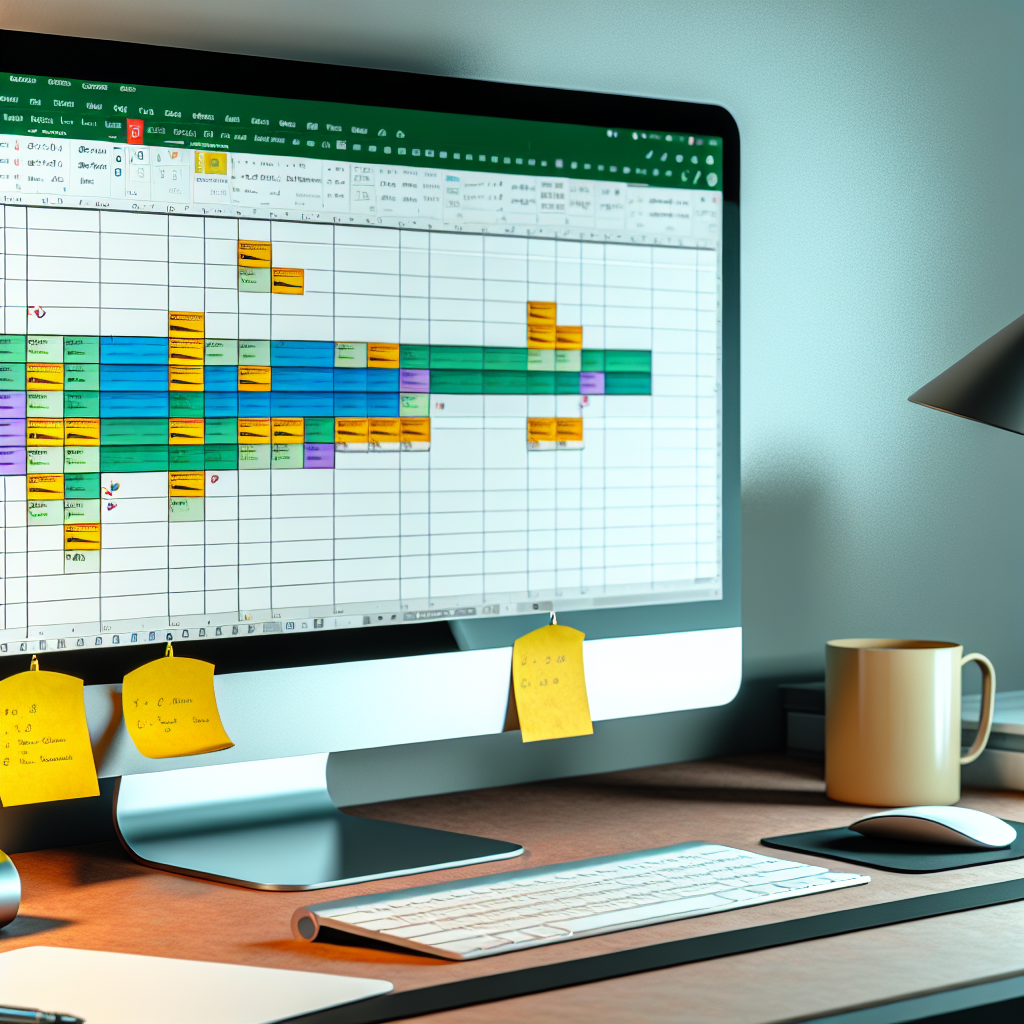
Creating an effective Progress Tracker in Excel can streamline your task management and enhance productivity. By leveraging Excel’s powerful features, you can monitor your goals, deadlines, and milestones with ease. In this article, we will explore practical methods to build a customizable and visually appealing progress tracker that suits your needs.
Designing a Dynamic Progress Tracker with Excel
To create a functional and intuitive progress tracker, start by organizing your data effectively. Use columns to list tasks, deadlines, responsible persons, and current status. Incorporate data validation lists to streamline status updates, such as “Not Started,” “In Progress,” and “Completed.” This not only ensures consistency but also simplifies data entry.
In addition, leverage Excel formulas such as COUNTIF and SUMIF to automatically calculate the number of tasks completed, pending, or in progress. For example, a simple formula like =COUNTIF(status_range, “Completed”) provides instant insights into your progress without manual counting.
Enhance visualization by adding conditional formatting to highlight overdue tasks in red, upcoming deadlines in yellow, or completed tasks in green. This visual cue helps you quickly identify areas needing attention and stay on track towards your goals.
Implementing Tracking Progress with Charts and Automation
Once your data structure is set, visualize your progress with dynamic charts such as pie charts or bar graphs. These charts provide a compelling visual overview that updates automatically as your data changes, making it easier to assess overall progress at a glance.
Moreover, you can automate routine updates using Excel’s Macros or Power Query. For instance, scheduled refreshes can pull data from external sources or update the status based on predefined conditions, saving you time and reducing manual errors. Using formulas like IF, TODAY(), and DATEDIF allows for real-time tracking of deadlines and progress, ensuring your tracker remains current and reliable.
By integrating these tools and techniques, your Excel progress tracker becomes a powerful project management aid, helping you stay organized and motivated throughout your workflow.
Conclusion
Developing a Progress Tracker in Excel involves thoughtful organization, leveraging formulas, visual cues, and automation features. By designing a dynamic system that updates automatically and visualizes progress effectively, you enhance your ability to manage tasks efficiently. With these tips, you can create a tailored tracker that keeps you on track and maximizes productivity.