
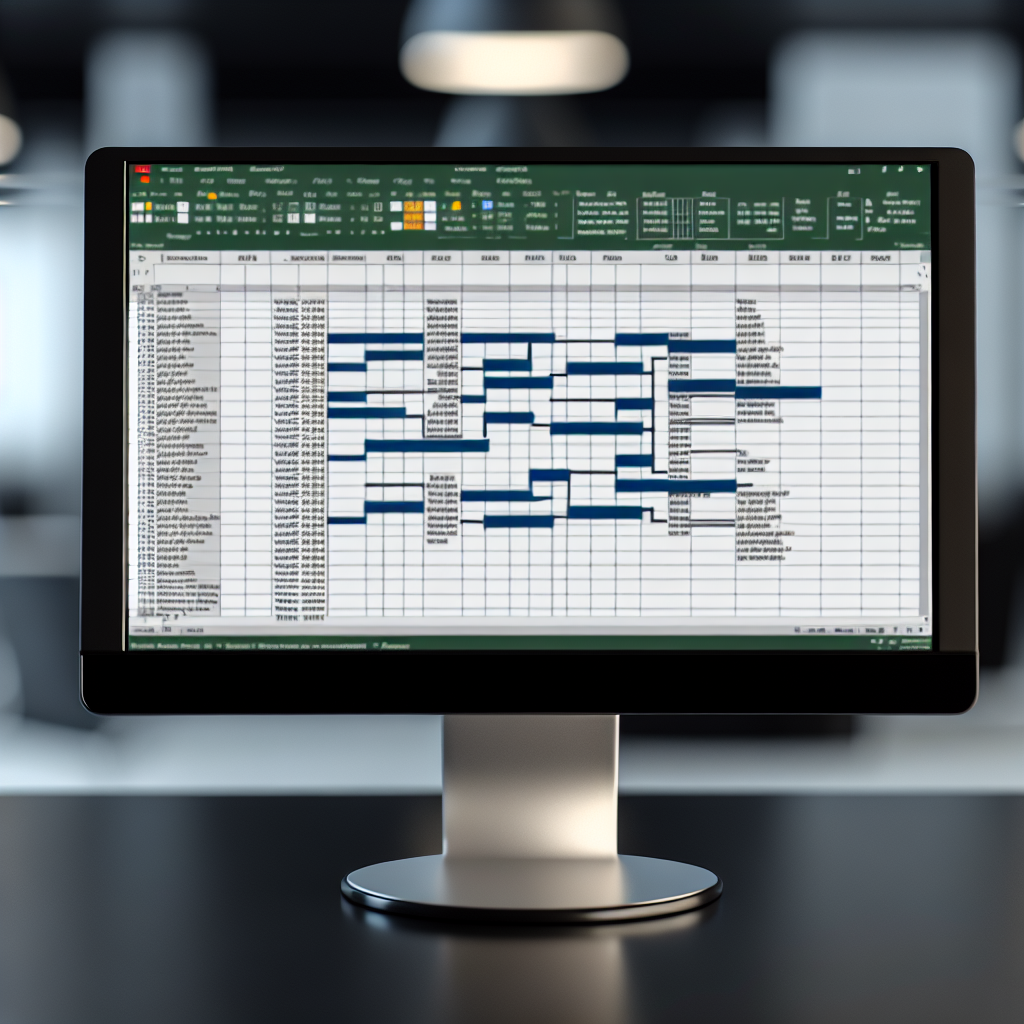
Creating an organizational chart in Excel can enhance your ability to visualize hierarchies and improve workplace communication. With a few simple steps and tips, you can craft a professional org chart that clearly displays reporting structures. In this article, we’ll walk through an effective Excel tip to quickly build an org chart that stands out and saves you time.
Preparing Your Data for a Clear Organizational Structure
Before creating an org chart, it’s crucial to organize your data properly. Start by listing all employees, including their names, titles, and direct supervisors. This information should be arranged in a clean table with columns such as Name, Title, and Supervisor. Proper data preparation ensures that Excel can accurately interpret the hierarchy, leading to a more precise and visually appealing chart.
For more advanced organization, consider adding departments or locations, which can help segment your chart for larger teams. Sorting your data consistently — for example, alphabetically by department or name — simplifies the process and minimizes errors during chart creation. Remember, the quality of your data directly impacts the clarity of your org chart.
Building the Organization Chart in Excel
Once your data is structured, you can utilize Excel’s SmartArt or Organizational Chart tools to visualize your hierarchy. Follow these steps for an effective creation process:
- Select Your Data: Highlight your employee data including names, titles, and supervisors.
- Insert SmartArt: Navigate to the Insert tab, then click on SmartArt. Choose Hierarchy options, such as Organization Chart, which best fits your needs.
- Populate the Chart: Use the SmartArt tool to input the names and titles manually or import data from your table. Excel may require some adjustments to match hierarchy levels, so ensure each position corresponds appropriately.
- Customize for Clarity: Enhance readability by adjusting colors, font sizes, and layouts. For large organizations, consider grouping departments or tiers to avoid clutter.
For complex hierarchies, consider leveraging Excel’s SmartArt tools combined with VBA scripts or add-ins that automate some of the chart-generation process, improving accuracy and saving time.
Conclusion
Creating an org chart in Excel is a practical skill that can improve your reporting and visualization of organizational structures. Starting with well-organized data and leveraging Excel’s SmartArt features, you can craft a professional chart efficiently. Mastering these steps not only streamlines your workflow but also enhances clarity within your team or organization. Keep practicing, and you’ll become proficient in designing impactful org charts with ease.