
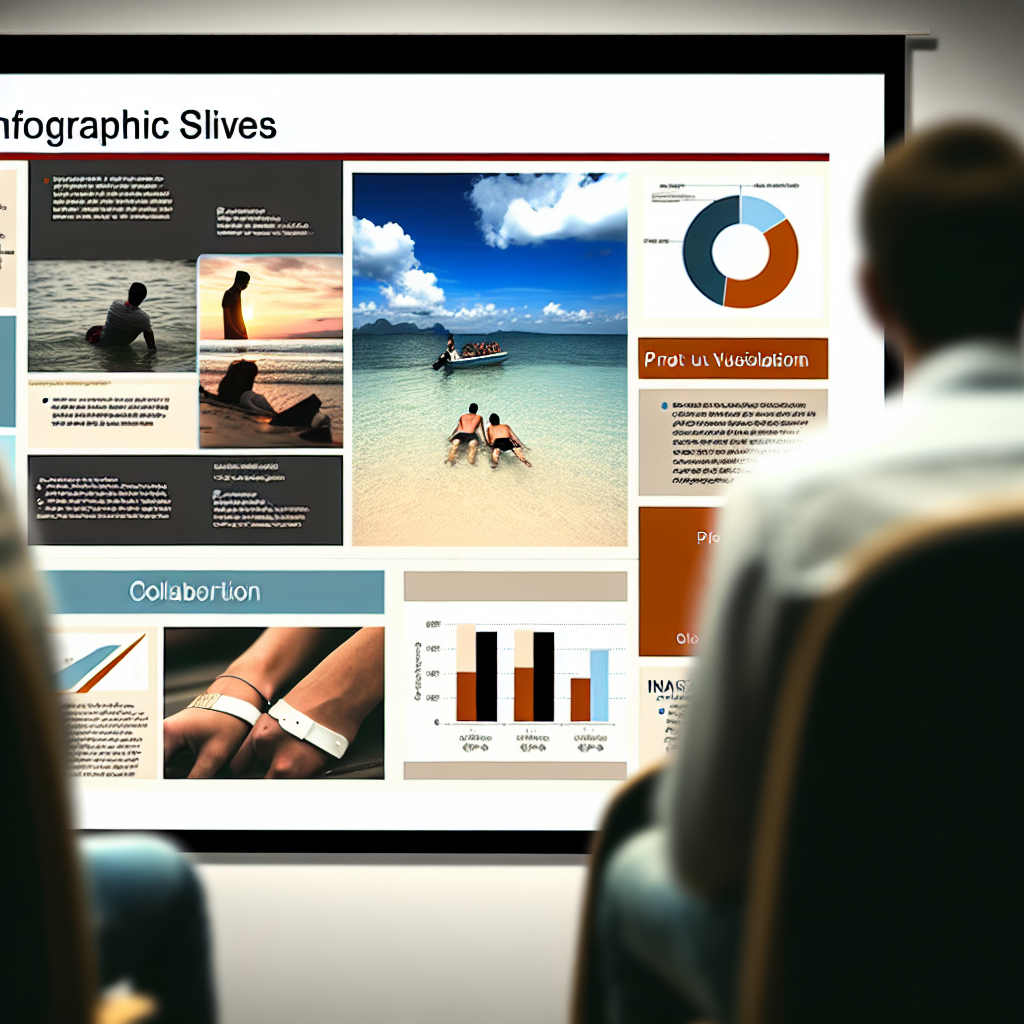
Creating visually compelling infographic slide presentations in PowerPoint is an essential skill for effective communication in today’s data-driven world. Well-designed infographics can simplify complex information, engage your audience, and enhance your presentation’s impact. In this guide, we’ll explore practical tips and step-by-step techniques to craft stunning infographic slides using PowerPoint.
Understanding the Foundations of Effective Infographics
Before diving into design, it’s crucial to grasp the core principles that make an infographic impactful. Start by defining your objective: Are you informing, persuading, or comparing data? Knowing this guides your design choices. Focus on clarity, simplicity, and accuracy. Use a logical flow to tell a story—think of your slide as a visual narrative that guides viewers seamlessly from one point to the next.
PowerPoint offers various built-in tools to support this process, including SmartArt, charts, and icons. Using these tools helps maintain consistency and professionalism throughout your presentation. Remember, the key is to present information in an easy-to-understand format that captures attention and aids retention.
Designing Your Infographic Slides with PowerPoint
Creating stunning infographic slides involves a combination of strategic layout, visual hierarchy, and stylish elements:
- Choose a Clean Layout: Use grid systems and alignment tools within PowerPoint to organize your content logically. Divide your slide into sections for headers, data points, and visuals.
- Utilize Visual Elements: Incorporate icons, charts, and images to represent data visually. PowerPoint’s icon library and chart tools can help you customize visuals to match your theme.
- Apply Consistent Color Schemes: Select colors that align with your brand or presentation theme. Use contrasting colors to highlight key information and ensure readability.
- Emphasize Data with Charts: Convert data into bar graphs, pie charts, or line charts using PowerPoint’s chart features. Customize styles to match your overall design aesthetic.
- Simplify and Focus: Avoid clutter by limiting the amount of information per slide. Focus on the most critical points and use visuals to communicate ideas quickly.
Additionally, leverage PowerPoint’s design ideas feature and alignment tools for professional-polished slides. Practicing these techniques will enable you to craft engaging, infographic-rich presentations that captivate your audience.
Conclusion
Mastering the art of creating infographic slide presentations in PowerPoint combines understanding core design principles with practical application of PowerPoint’s versatile tools. By defining your message, organizing content effectively, and enhancing visuals with smart design choices, you can produce impactful slides that communicate complex data clearly and attractively. Start experimenting today and elevate your presentations to the next level!